

Find your AdsPing script
Every conversion event flows through a tiny script tag we’ll paste on your site in the next step. The script lives inside your AdsPing dashboard. Let’s find it.
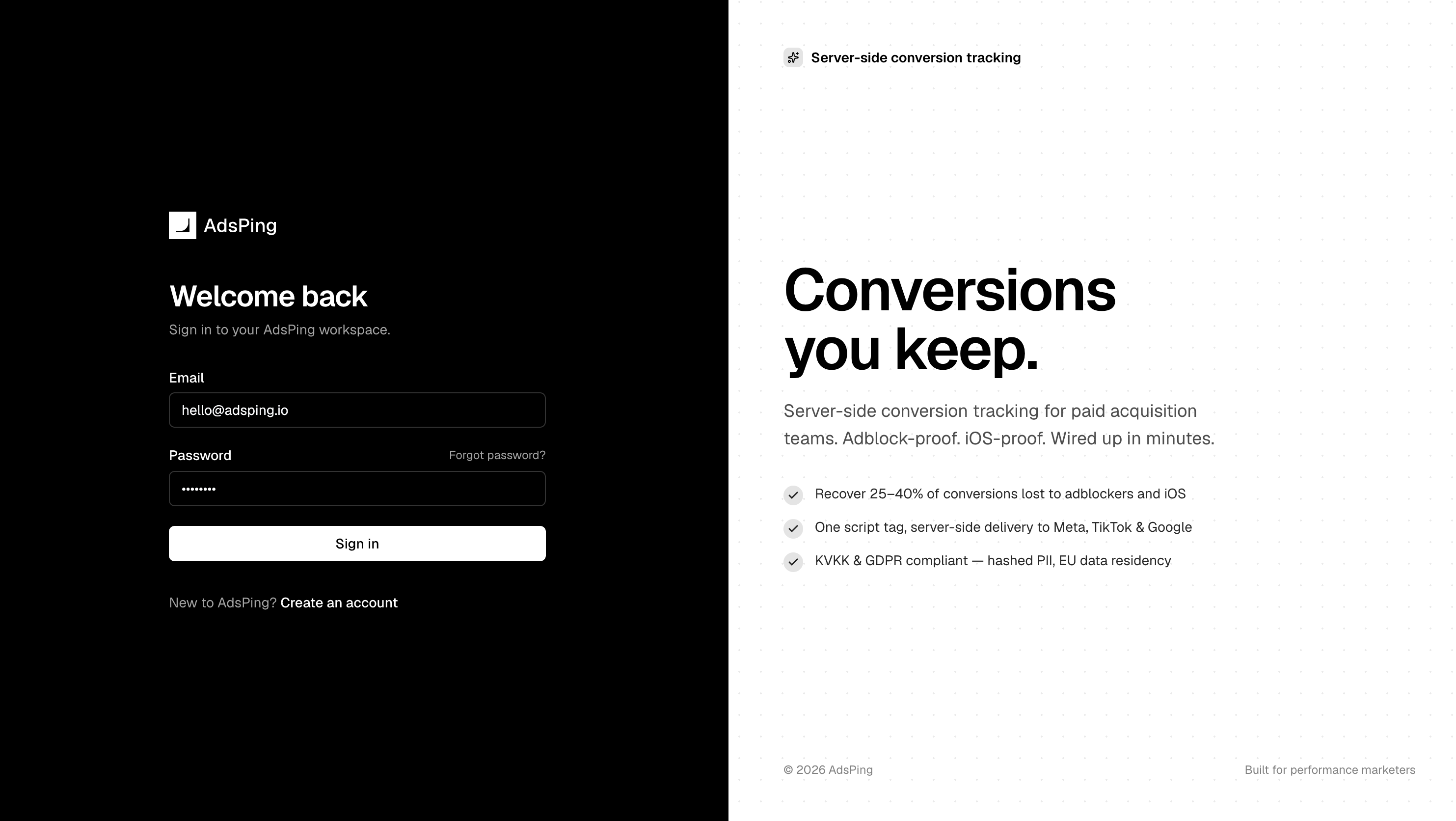
1.1 — Sign in to your AdsPing dashboard
Open dashboard.adsping.io and sign in with the account you registered with.
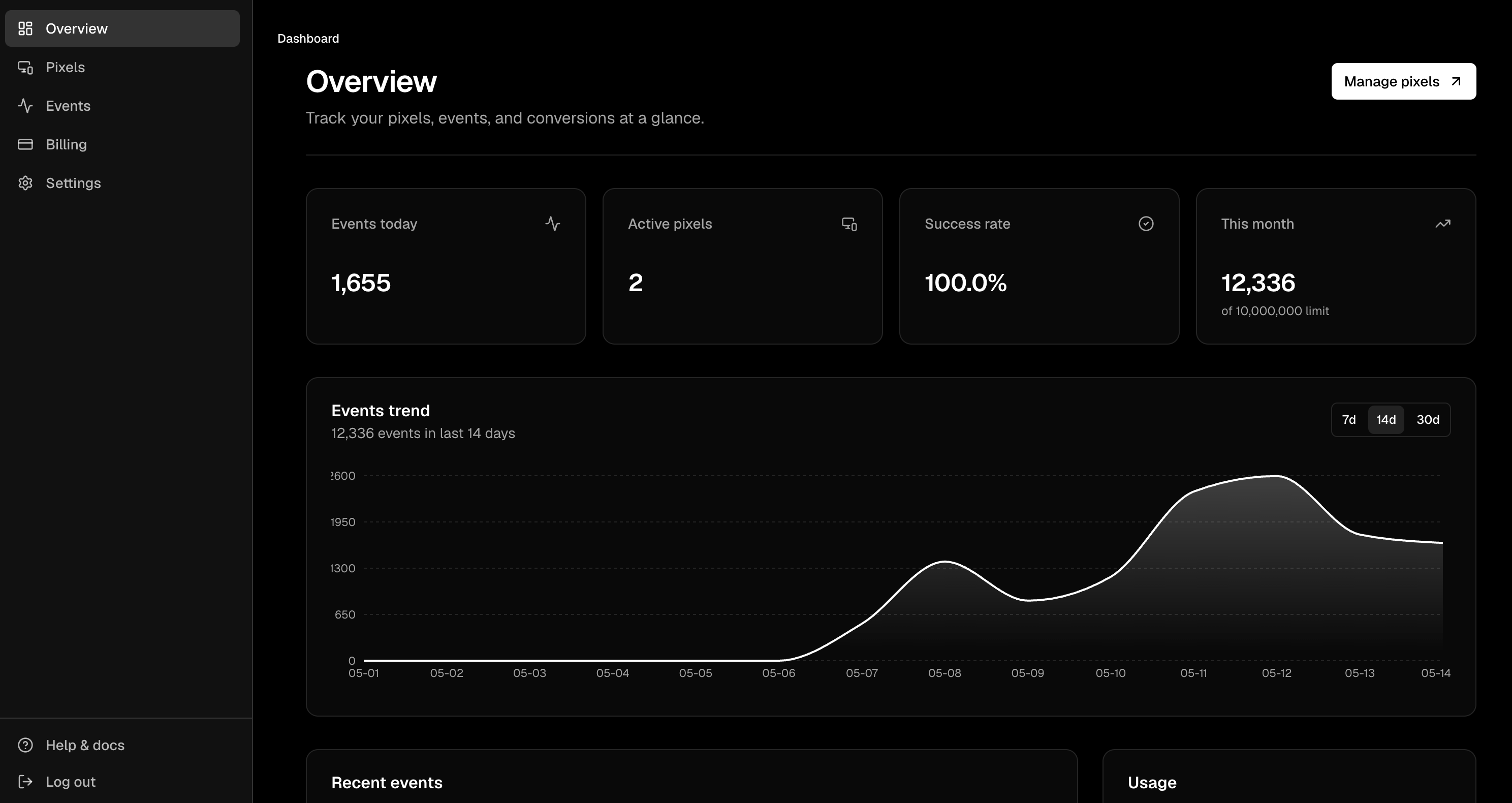
1.2 — Open the Pixels page
In the left sidebar, click Pixels. You’ll see a list of every pixel on your account.
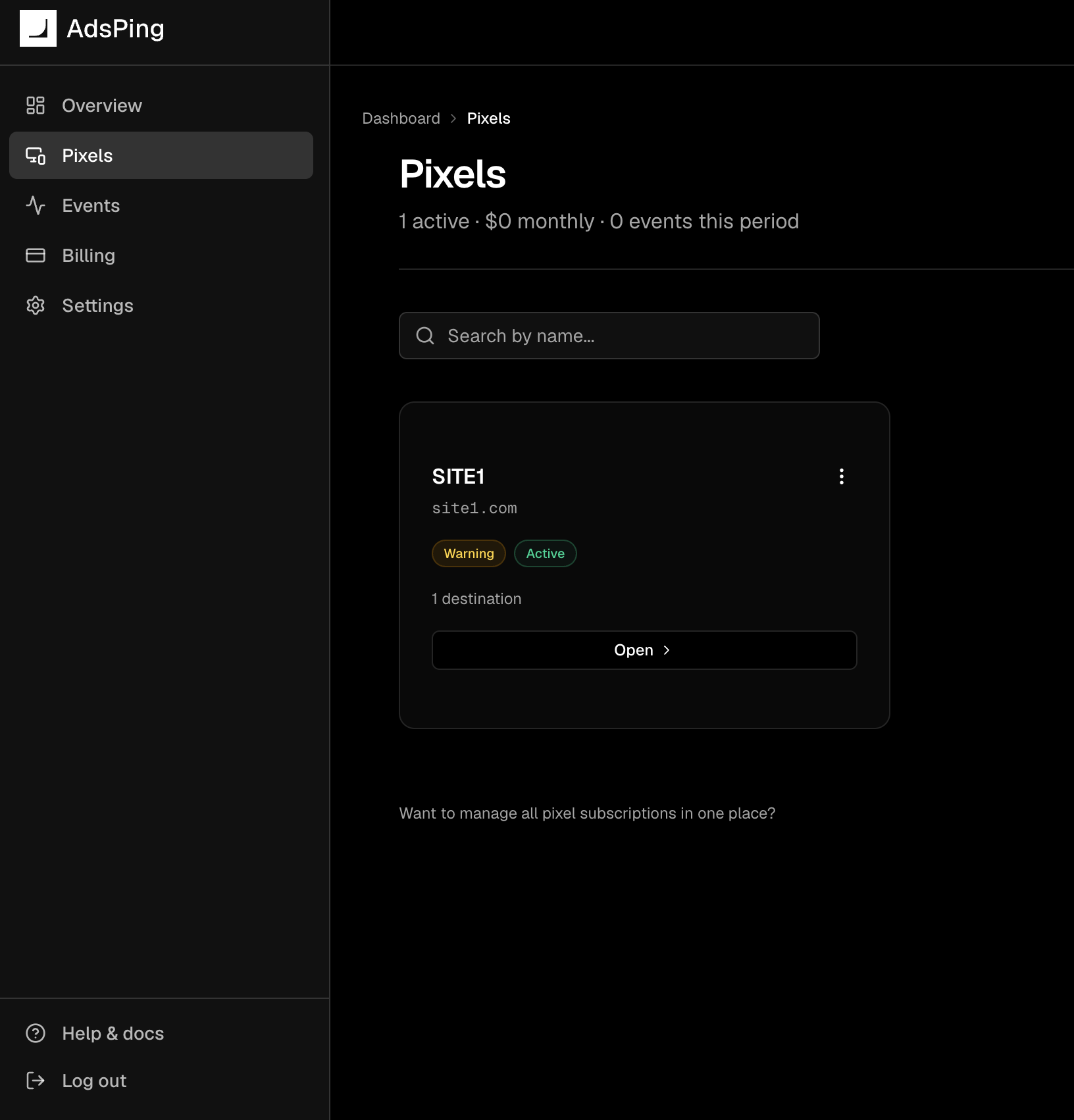
1.3 — Open the pixel you want to install
Click the name of the pixel that matches the website you’re installing on. One pixel per website is the common case.
Don’t have a pixel yet?
Click New pixel at the top of the list. Name it after your site (e.g. “Acme Skincare Store”), save, then continue here.
1.4 — Find the install snippet card
On the pixel detail page, scroll to the Install snippet card. It contains a single line of code with your unique Pixel ID already baked in.
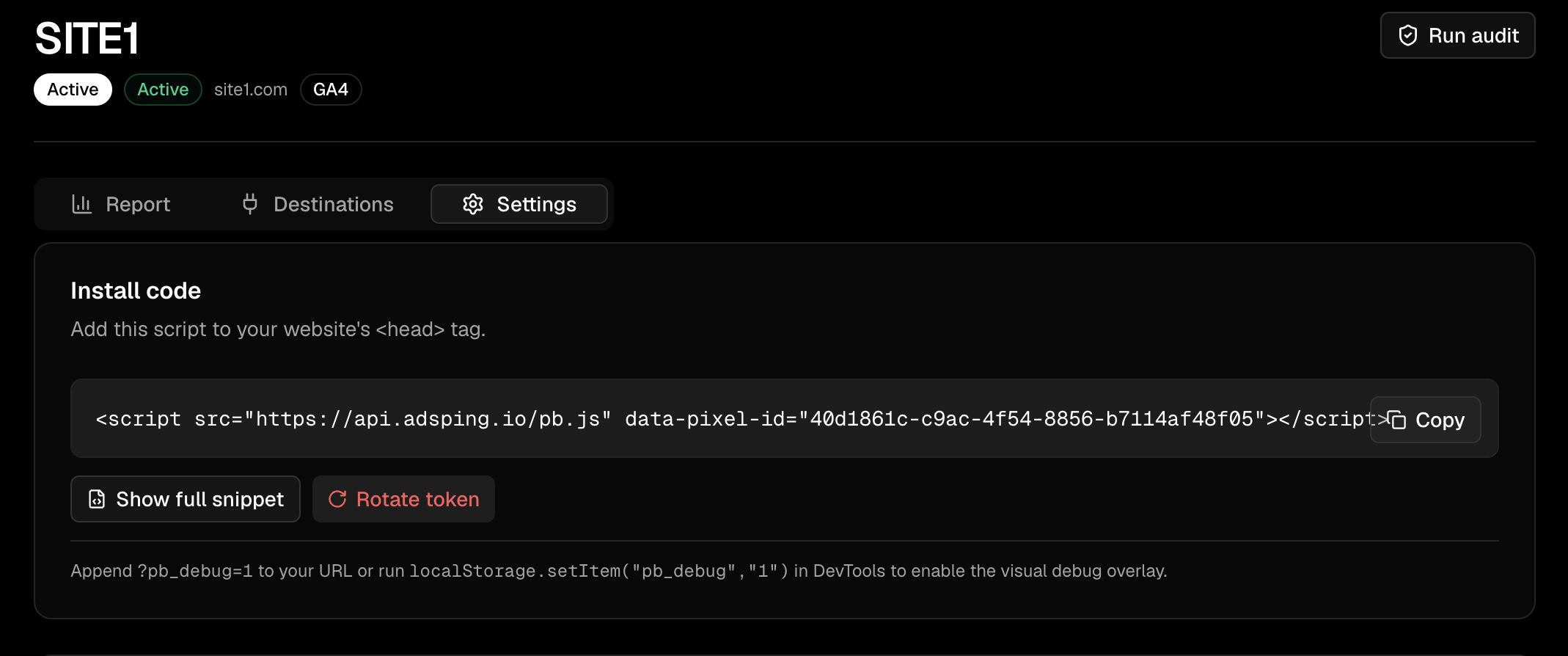
1.5 — Copy the script
Click the Copy button on the right side of the card. The script is now on your clipboard. You’ll paste it on your site in Step 2.
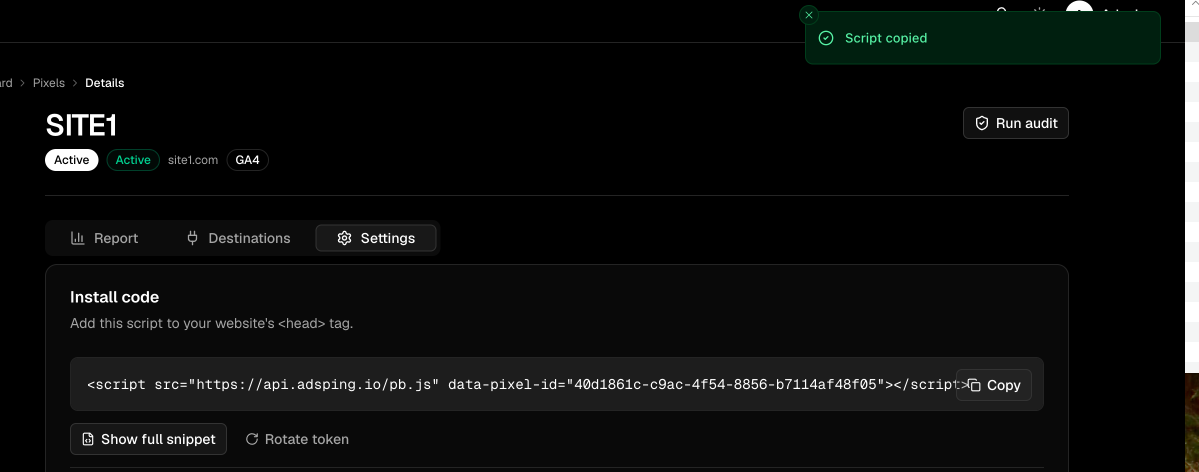
✓ You have the script. Keep this tab open.
We’ll paste it into your site in the next step. If you accidentally close the tab, just come back here — the script stays the same.